Exams and Assessments
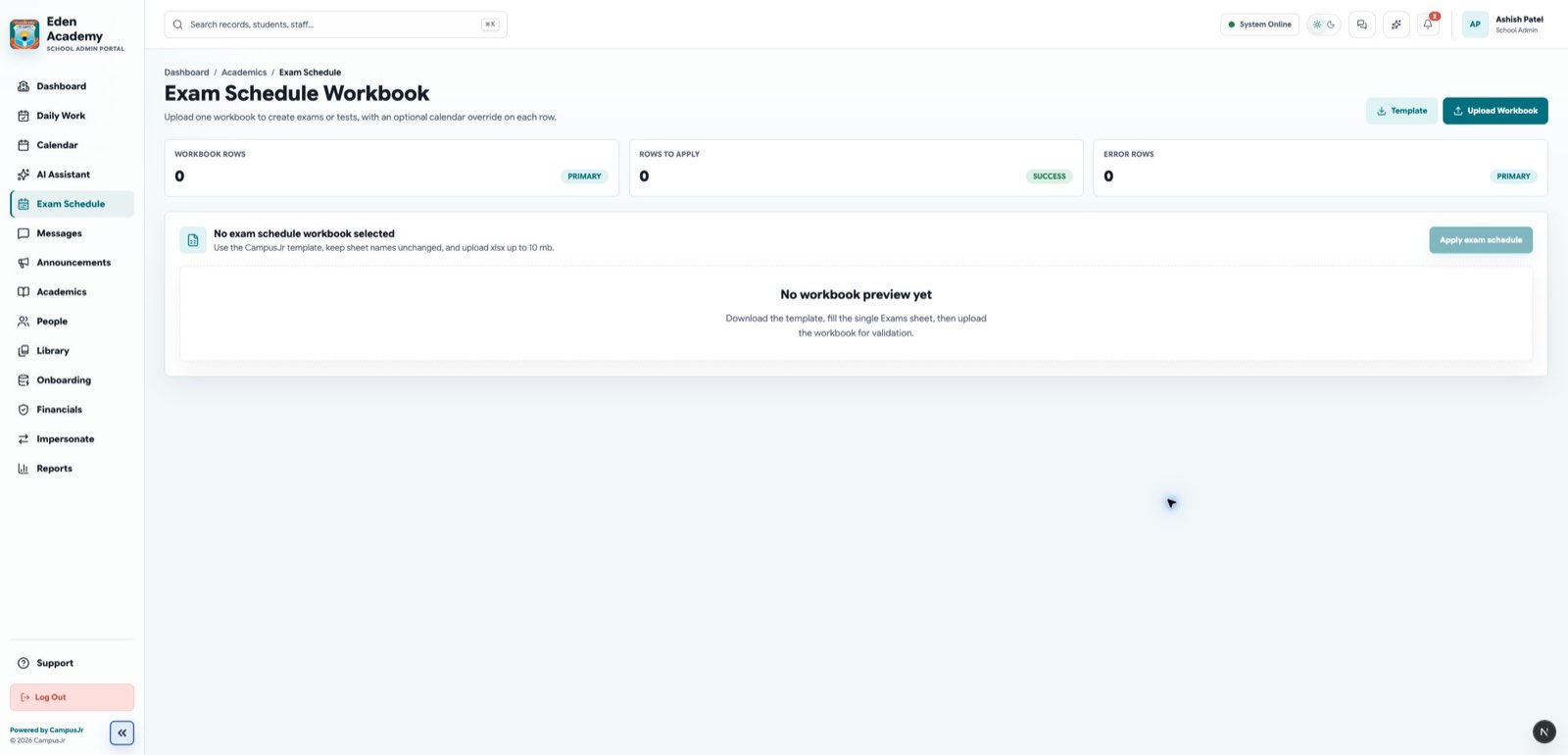
School admins manage exam setup from class-section pages and the exam schedule workbook. These tools define the assessment structure that teachers later use for marks entry.
Create or manage exams from a section
Open a class section and use the Exams area to:
- create an exam for that section
- edit the exam name, subject, date, max marks, and pass marks
- unlock a locked exam when marks need to be corrected
- delete an exam when it should no longer exist
Calendar override options
Each exam can control the timetable in one of three ways:
Do nothing in calendar: keeps the exam out of the calendarOverride classes only in exam time: hides overlapping timetable periods only during the exam windowRemove all other classes on exam day: clears the rest of the timetable for that date
Use full-day removal only when the section should not follow its normal schedule at all.
Exam schedule workbook
Use Admin > Exams Import when the school needs to create or update many exams at once.
The workbook flow supports:
- one
Examssheet - preview before apply
- create, update, ignored, and error row results
- optional timed or full-day calendar overrides per row
Recommended flow
- Confirm the section timetable and subject mapping first.
- Use manual exam creation for a small number of tests.
- Use the workbook for larger exam schedules or term-wide rollout.
- Review calendar impact before applying overrides.
- Unlock marks only when a correction is genuinely required.
Good controls
- Keep exam names consistent across sections.
- Set pass marks only when the assessment uses a pass threshold.
- Re-check the calendar after workbook apply when an exam changes timetable visibility.