Student Promotion
At the end of an academic year, school admins use the student promotion workspace to advance student cohorts to their next grade and section.
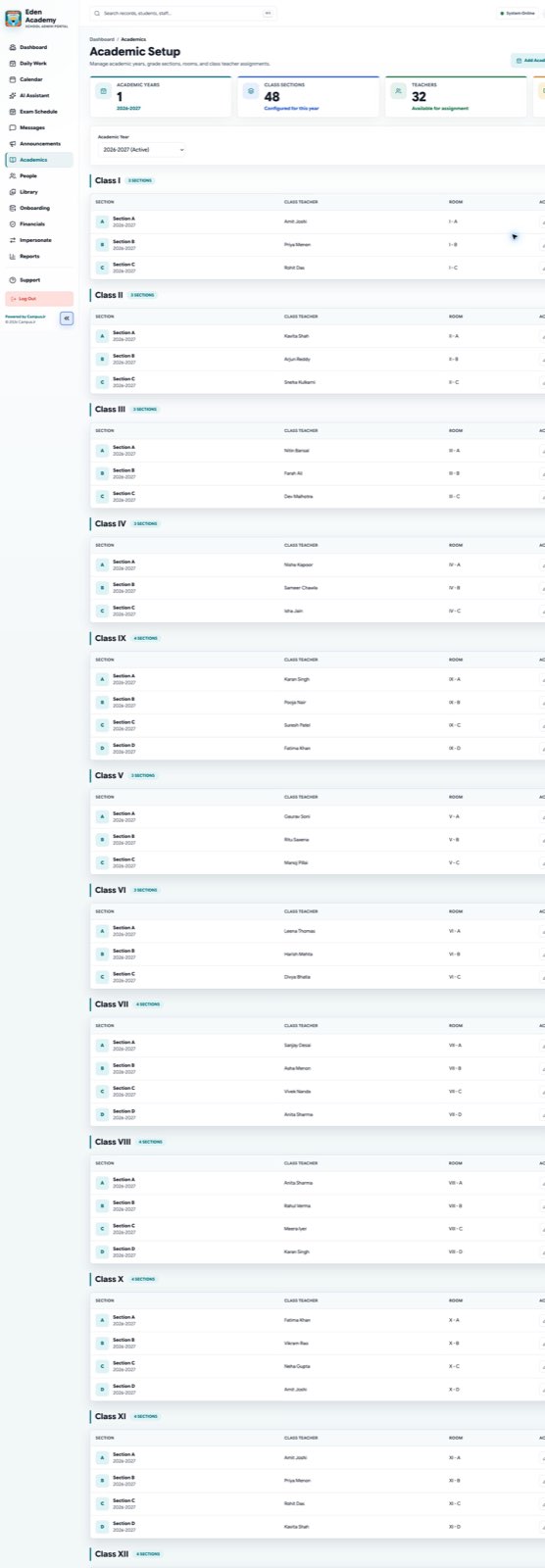
The promotion workflow maps current sections to their target sections in the upcoming academic year.
Recommended Pre-requisites
Before initiating student promotion, ensure that:
- The upcoming Academic Year is created and active.
- All target classes and sections are configured in the target academic year.
- Final exam marks and report cards for the current year are finalized (to determine who is promoted vs. retained).
Promotion Step-by-Step
The promotion workflow consists of mapping classes, reviewing the preview list, adjusting exceptions, and applying changes.
Step 1: Initialize the Promotion
- Navigate to School Admin Portal > Classes.
- Click Promote Students at the top right of the workspace.
- Select the Source Academic Year (current year) and Target Academic Year (upcoming year).
Step 2: Configure Section Mapping Rules
- Map each current class section to its target class section.
- Select the default Promotion Outcome for each section:
- PROMOTED: Student moves to the target section in the target year.
- RETAINED: Student stays in the same grade/section in the new year.
- GRADUATED: Student has completed the highest grade (e.g. Grade XII) and will be marked as graduated.
- TRANSFERRED: Student is leaving the school.
- INACTIVE: Temporarily suspends the student record in the new year.
Step 3: Preview the Promotion
- Click Preview Promotion.
- campusJr will process the rules and generate a candidate list showing each student, their current section, and their assigned target section.
- Review the preview list. You can filter by:
- All Rows
- Promoted
- Retained/Graduated
- Warnings/Errors (e.g., student missing a guardian, target section does not exist).
Step 4: Apply Individual Adjustments
If some students should not follow the default section rule (for example, a student is being retained while the rest of the class is promoted):
- Locate the student in the preview table.
- Click the dropdown in their Target Class or Outcome column.
- Change their outcome to RETAINED or assign them to a different section.
- The row status will update to Modified.
Step 5: Commit and Apply
- Click Apply Promotion.
- Confirm the prompt. campusJr will batch-promote the records.
- A progress modal will show completed rows.
- Once completed, students will be active in their new classes for the upcoming academic year.
Best Practices & Safety
[!WARNING] Student promotions are critical database migrations. Ensure all current financial records for the source academic year are closed or finalized before running the promotion.
- Check fee dues: Students with pending fee dues can be promoted, but their outstanding balances should be handled by the accountant using the carryover dues workflow.
- Run in batches: Promote one grade at a time (e.g. Grade V sections first, then Grade IV) to keep validation checks simple and easy to resolve.
- Verify Teacher Assignments: After promotion is complete, remember to assign teachers to their new sections in the upcoming academic year.