Onboarding Workbook Import
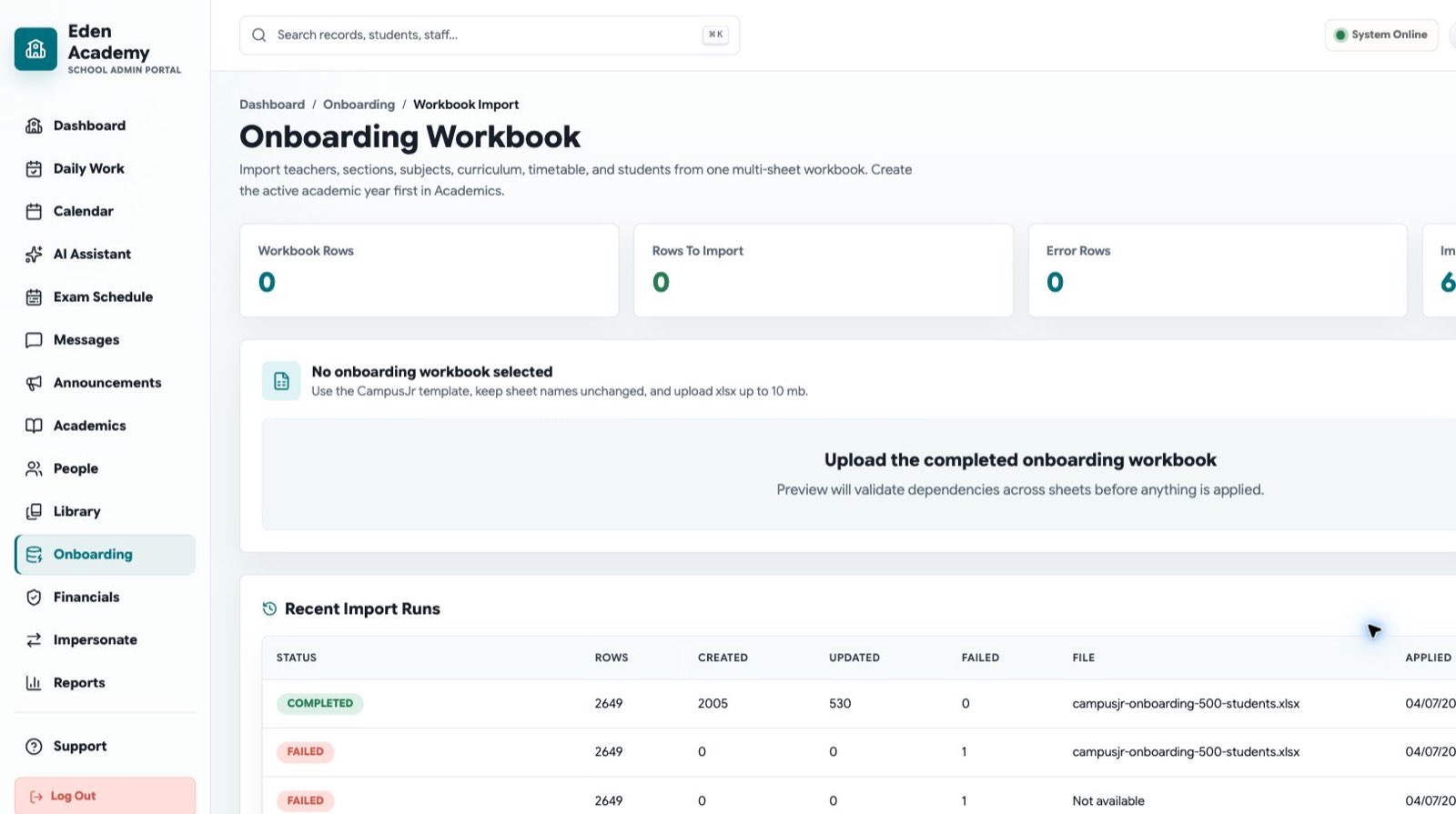
Use Onboarding > Workbook Import when a school has many setup records to load before go-live. This replaces the older separate Bulk Import screen. Existing bookmarks still redirect safely, but school admins should use the onboarding workbook as the canonical import flow.
The workbook preview validates all sheets together before anything is applied, so dependency errors such as a timetable row referencing a missing subject or teacher are visible upfront.
Before you begin
- Confirm you are signed in as a school admin.
- Use
.xlsxfiles only. - Download the current template from Onboarding > Workbook Import.
- Keep sheet names and column headers unchanged.
- Preview every workbook before applying valid rows.
Workbook sheets
The V1 onboarding workbook includes:
| Sheet | Purpose |
|---|---|
| Academic Years | Create or activate school years. |
| Classes & Sections | Create grades, sections, rooms, and class teacher references. |
| Teachers | Create teacher login records. |
| Subjects | Create the school subject catalog. |
| Class Curriculum | Map subjects to grades with display order and weekly period counts. |
| Teacher Assignments | Assign teachers to class sections and subjects. |
| Weekly Timetable | Load Monday-Saturday period grids. |
| Students & Guardians | Create student, guardian, and enrollment records. |
| Calendar | Add working days, holidays, exam days, and notes. |
| Fee Setup | Create fee heads, plans, and plan items. |
Recommended flow
- Open School Admin Portal.
- Select Onboarding from the left navigation.
- Open Workbook Import.
- Download the template.
- Fill the workbook using the sample rows as a reference.
- Upload the completed workbook.
- Review create, update, ignored, and error rows in the preview.
- Apply valid rows.
- Open the latest import run to review failed records, if any.
Preview filters
The preview summary is clickable:
| Filter | Shows |
|---|---|
| Rows | All rows in the selected sheet. |
| Create | Rows that will create new records. |
| Update | Rows that will change existing records. Old values are shown in red with a strikethrough and new values are shown in green. |
| Ignored | Rows that matched existing records but have no field changes. |
| Errors | Invalid rows that will not be applied. |
Apply order
Valid rows are applied in dependency order:
- Academic years
- Teachers
- Classes and sections
- Subjects
- Class curriculum
- Teacher assignments
- Weekly timetable
- Students and guardians
- Calendar
- Fee setup
Rows with errors are skipped and listed in the import details panel.
Troubleshooting
- If the file does not load, confirm it is an
.xlsxworkbook using the latest template. - If a dependency error appears, fix the referenced sheet first and upload again.
- If a row is marked Ignored, campusJr found the matching record and no field values changed.
- If a row is marked Update, review the old and new values before applying.