Exams and Marks
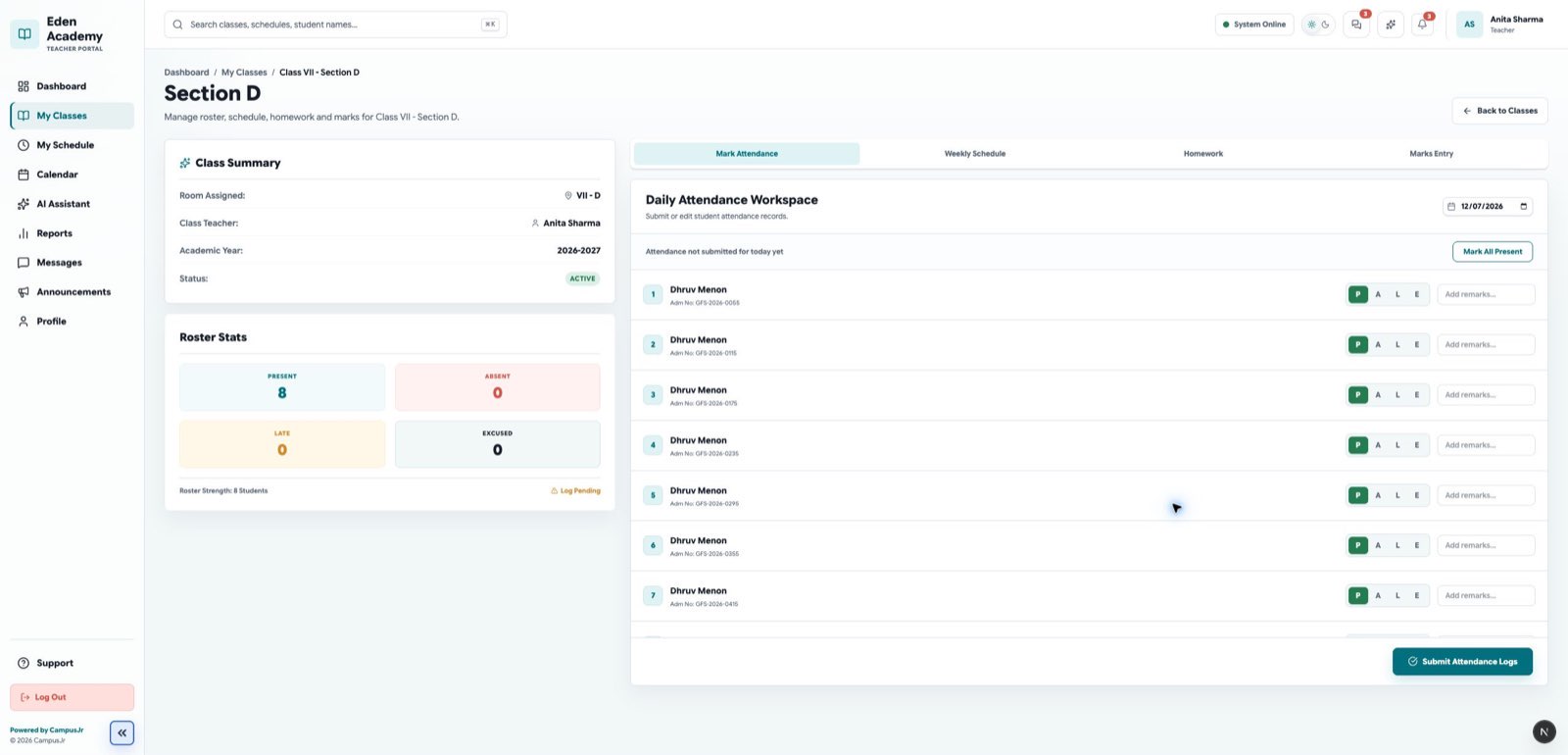
Teachers enter scores from the Marks Entry tab inside each assigned class section. The same workflow supports school-admin exams and teacher-created class tests.
When no exam exists yet
If the section has no exam, teachers can use Create Test to add a class test for marks entry only.
This quick-create flow:
- sets the test name, subject, date, max marks, and pass marks
- does not change the school calendar
- is useful for section-level assessments that do not need admin scheduling
Marks entry workflow
- Open the assigned class section.
- Switch to the
Markstab. - Select the exam or test.
- Enter or update each student's marks.
- Add remarks when feedback is needed.
- Save marks before leaving the page.
Locking marks
Lock an exam only after the section review is complete. Once locked, teachers can no longer edit the marks unless a school admin unlocks the exam.
Use locking when:
- all intended student scores are entered
- remarks are finalized
- the section no longer needs score edits
Entry points from other teacher pages
- Calendar and timetable views can link directly into marks entry when an event is tied to an exam.
- Class reports summarize marks after data has been submitted.
Good habits
- Save marks before attempting to lock.
- Use remarks for important performance notes, not for routine scoring.
- Ask the school admin to unlock only when the correction is necessary and traceable.