AI Help Assistant
The AI Help Assistant helps school admins, accountants, teachers, and librarians resolve operational questions directly within the campusJr web portal.
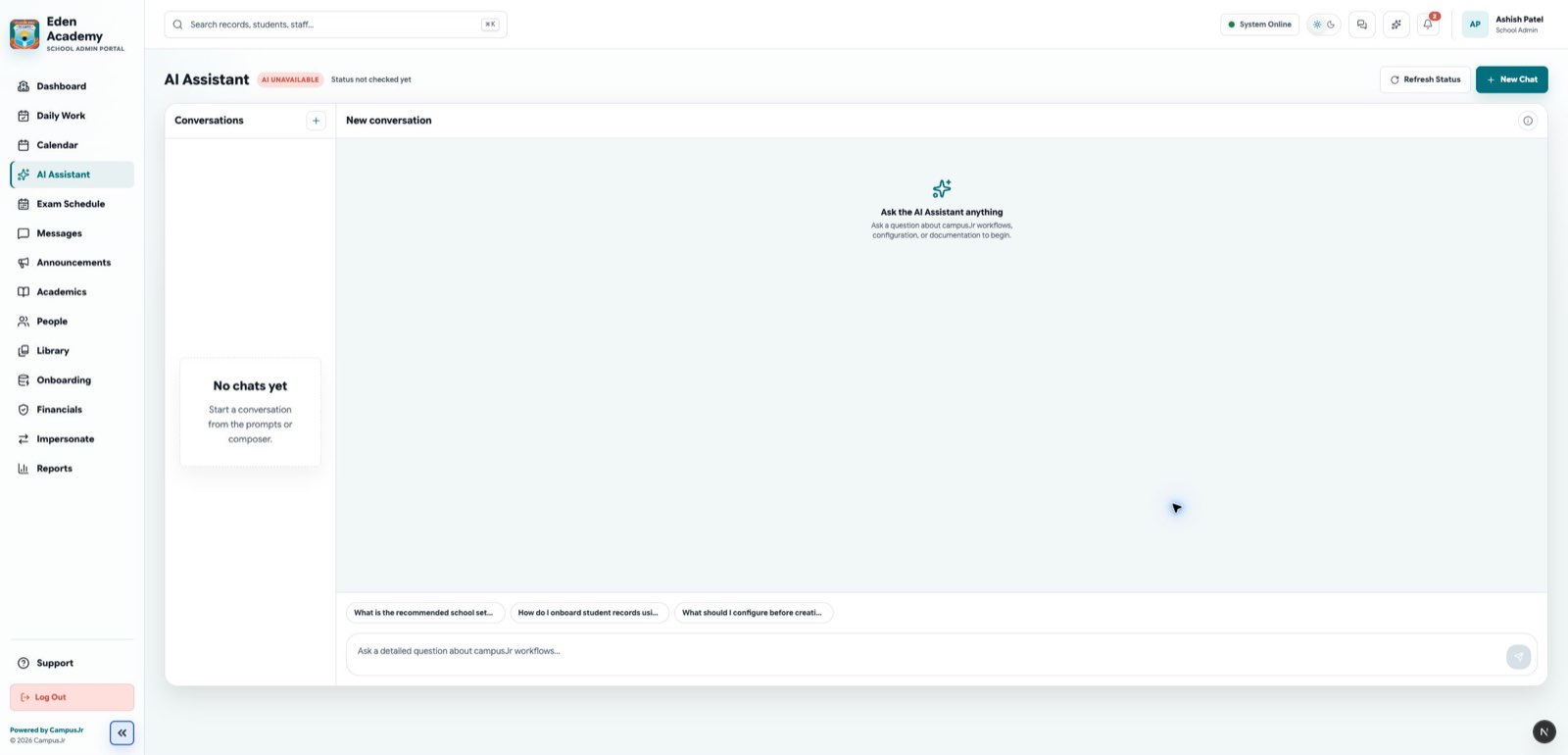
The AI Assistant panel is available from the navigation sidebar or as a quick popup on every page.
Core Capabilities
- Context-Aware Q&A: Answers questions about fee plans, class schedules, attendance marking, student directory setup, and library rules.
- Role-Specific Templates: Suggests relevant questions based on your active user role (e.g. accountants see questions about fee configuration; teachers see questions about marking attendance).
- Automated Support Ticket Drafts: Can generate a structured subject line and description for a support ticket based on a simple issue description.
1. Chat Help
Use Chat Help to ask questions about how the platform works or to find specific features.
How to use Chat Help:
- Click the AI Assistant icon in the sidebar, or click the floating button in the bottom corner of your screen.
- Select one of the Suggested Prompts for your role, or type a custom question in the composer box.
- Press Enter or click Send. The assistant will process the query and display the step-by-step resolution.
- Click New Chat at any time to clear the conversation and start a new session.
Recommended Prompts by Role:
| Role | Example Prompts |
|---|---|
| School Admin | "What is the recommended school setup order?" "How do I onboard student records using the spreadsheet?" "What should I configure before creating classes and sections?" |
| Accountant | "How do I create fee plans?" "How do I assign fee plans to sections?" "What finance setup should happen before collections begin?" |
| Teacher | "How do I mark attendance as a teacher?" "How do I create classwork or homework?" "How do I enter marks for a class test?" |
| Librarian | "How do I use the workbook import flow for library books?" "How do I manage inventory and circulation?" "What setup should be completed before library operations begin?" |
2. Drafting a Support Ticket
If the assistant cannot resolve your issue, it can draft a support ticket for your school support queue.
How to draft a ticket:
- In the chat, state that you need to open a support ticket (e.g., "Help me draft a ticket for a missing fee payment reconciliation").
- Provide details about the issue when prompted.
- The AI will output a Ticket Draft with:
- A clear Subject line.
- A structured Description detailing the steps to reproduce, expected outcome, and actual result.
- Review the draft, then click Create Ticket to send it to the school support queue, or copy the text into the School Support portal manually.
Troubleshooting & Status
The AI Assistant panel displays an Assistant Status indicator at the top of the interface:
- Active (Green): The AI service is online and ready.
- Checking (Amber): The portal is checking connection status.
- Offline (Red): The AI service is currently unavailable. You can still use the regular School Support Portal or contact school admins for assistance.