Communication & Messaging
campusJr provides real-time direct messaging and group communication tools to keep school teams connected safely across the web portal.
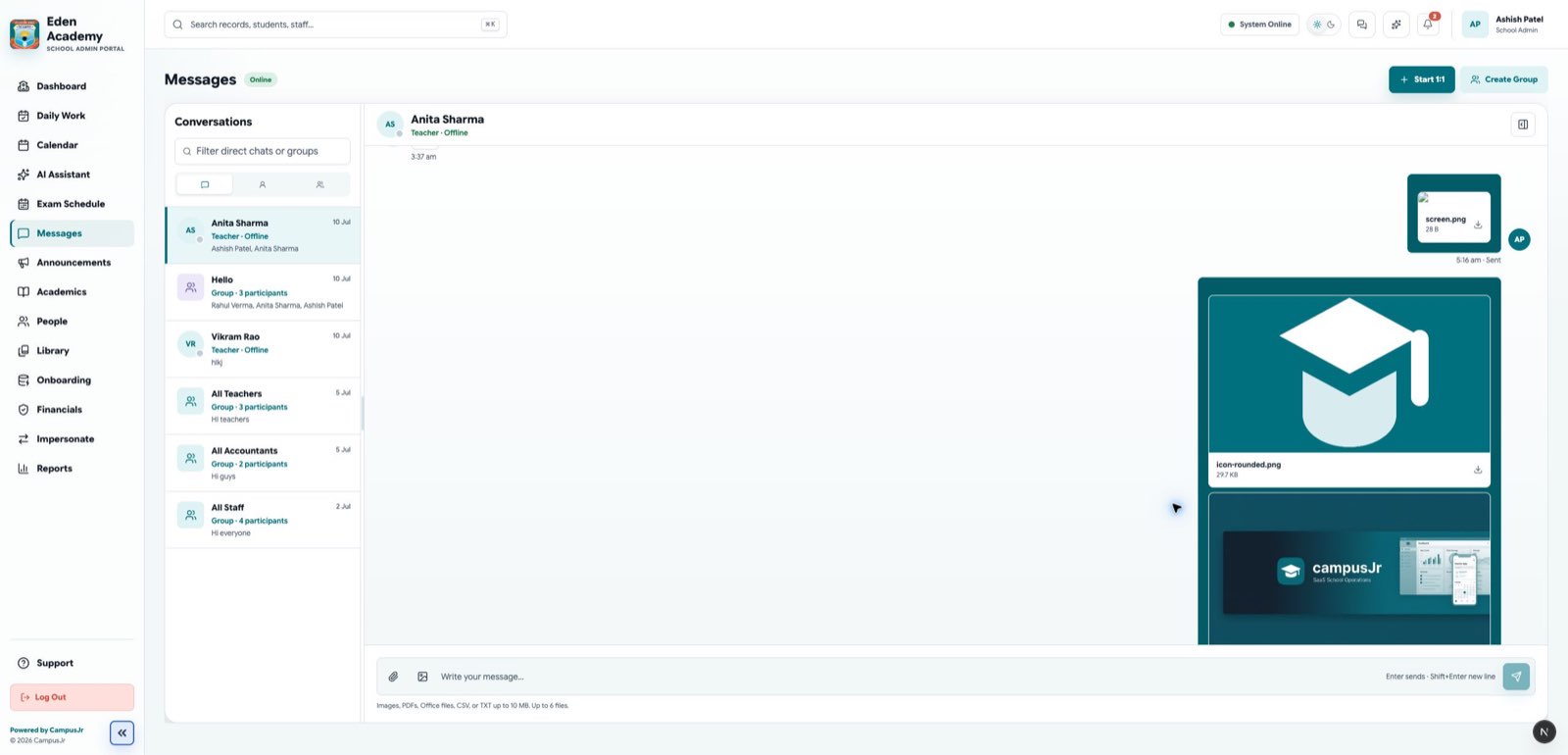
The Communication workspace displays active conversations, user directories, and real-time messaging options.
Key Features
- Direct Messages (DMs): Private 1-to-1 conversations between school staff, teachers, or parents.
- Group Channels: Structured group chats automatically created for class sections (e.g. "Grade VI-A Staff Group") or custom staff committees.
- Media & File Attachments: Share images, homework documents, announcements, and receipts directly inside the chat.
- Delivery & Read Indicators: Real-time status icons indicating when your message is sent, delivered, and read.
- Role-Based Privacy Scopes: Ensures tenant boundary control. School admins can chat with all members, while teachers can chat with parents of their sections, and parents can only message assigned teachers and school support staff.
1. Starting a Conversation
To start a new chat:
- Navigate to the Communication workspace in the left navigation menu.
- Click the New Chat / Plus (+) icon at the top of the conversations list.
- Use the search bar to find a user by name, phone number, or role.
- Select the user. A new chat window will open.
- Type your message and click Send (or press Enter).
2. Managing Group Channels
Group channels are categorized into:
- System Groups: Auto-generated based on academic setup (e.g., all teachers teaching Grade IX-A, or all guardians of Class III-B). Membership updates automatically when student enrollments or teacher assignments change.
- Custom Groups: Created by school admins for specific committees, clubs, or staff teams.
To create a Custom Group:
- Click the Plus (+) icon next to Groups in the conversation rail.
- Enter a Group Name and optional Description.
- Select participants from the staff directory.
- Click Create Group.
3. Real-Time Presence & Message Status
Every chat message displays delivery status indicators:
- Single Grey Tick: Message sent successfully to the server.
- Double Grey Ticks: Message delivered to the recipient's device.
- Double Blue Ticks: Message read by the recipient (or read by all members in a group chat).
- Green Dot: Shows that a user is currently online and active in the portal.
- Typing Indicator: Displays "User is typing..." when the recipient is actively writing a response.
Privacy & Communication Safety
To maintain professional boundaries and comply with tenant isolation policies, messaging permissions are strict:
- Teachers: Can message other staff, school admins, and parents of students enrolled in their assigned sections. They cannot message parents of other classes.
- Parents: Can message the class teacher, subject teachers of their child, and the school support desk. They cannot message other parents or unrelated staff.
- Students: If student messaging is enabled, students can only chat within their class group and message their teachers.
- Accountants & Librarians: Can message school admins and staff. They can only message parents regarding specific outstanding items (fines/fees) if initiated by the parent or admin.