Super Admin Portal Guide
The Super Admin portal is used by campusJr platform administrators to manage tenant schools, review financial billing, respond to public inquiries, and support users.
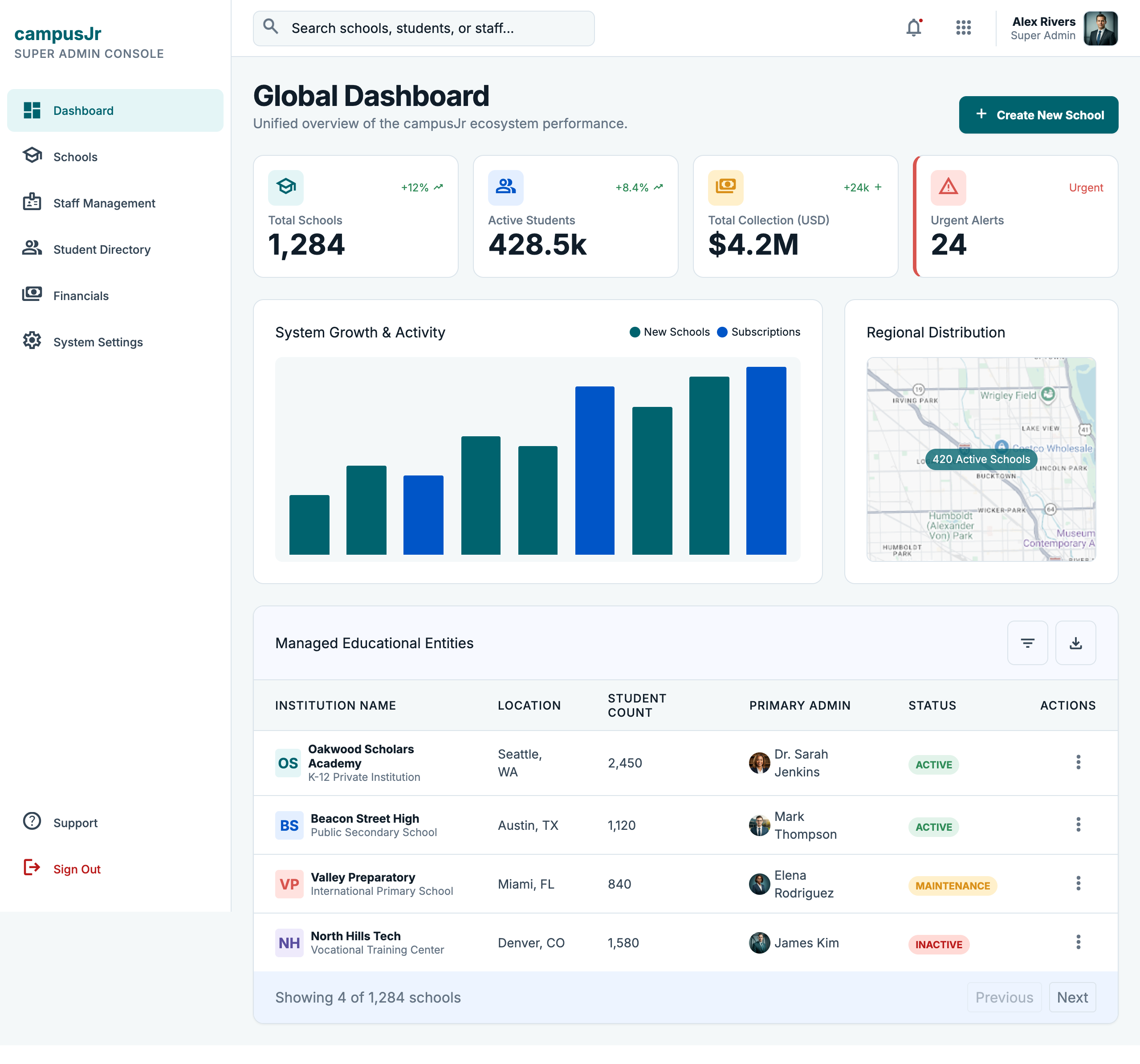
The platform dashboard provides a global overview of active schools, total student enrollment, financial health, and support queues.
Core Responsibilities
- School Tenant Lifecycle: Create new school entities, manage domains, upload school branding/logos, and suspend or activate accounts.
- Enquiry Management: Review, reply to, and resolve public interest submissions from the website enquiry forms.
- Support Queue Oversight: Manage platform-wide technical support tickets escalated from individual school administrators.
- User Impersonation: Safely log in as a school admin, teacher, or accountant to troubleshoot configurations or settings issues.
1. School Tenant Onboarding
To create a new school tenant:
- Navigate to Super Admin Portal > Schools.
- Click Add New School (+).
- Fill in the required details:
- School Name (e.g. Sunrise Public School).
- Board Affiliation (CBSE, ICSE, State Board, etc.).
- Admin Username & Email (used to create the initial School Admin account).
- Domain / URL identifier (e.g.
sunriseforsunrise.campusjr.com).
- Click Create School. An onboarding email with registration links is sent to the designated school admin.
- In the school detail page, you can upload their custom logo, which is stored securely in S3 object storage.
2. Managing Public Enquiries
Public interest and demo requests submitted from the landing website land in the Super Admin enquiry queue.
To process an enquiry:
- Go to Super Admin Portal > Enquiries.
- Select an active enquiry to view the details (e.g. name, work email, phone number, school name, designation, and estimated student count).
- Review the request. Click Reply to email the school directly or Create School to immediately convert them into a tenant school.
- Mark the enquiry as Resolved or Archived once communication is established.
3. User Impersonation (Switch User)
To assist school teams with configuration errors or technical support, Super Admins can impersonate any user on the platform.
How to impersonate a user:
- Navigate to Super Admin Portal > Switch User or open the user's profile card in the student/staff directory.
- Search for the target school name and the specific user's email/username.
- Click Switch to User.
- Your browser session will load the portal exactly as the target user sees it (subject to school-level role permissions).
- A persistent Exit Session banner will display at the top of the interface. Click Return to Super Admin to end impersonation and restore your admin privileges.
[!CAUTION] Every switch-user action writes an immutable entry to the platform-wide audit log for security compliance. Never perform mutations while impersonating unless requested by the tenant admin.
4. Support Ticket Management
Super Admins review technical issues escalated from school portals.
- Ticket Review: Open active tickets to see the history, description, and attachments.
- Reply: Respond to school admins with resolutions.
- Assignment: Route tickets to specific engineering or customer support members.
- Status Change: Update tickets to In Progress, Resolved, Closed, or Reopened.